I research my part of the route.
The Girl Scout motto is “be prepared,” and it’s something I’ve taken to heart ever since I was a scout. The best way to ensure a smooth endeavor is to be prepared for what may come up along the way. While I wanted my two-month boat trip to be smooth, I also wanted to make sure I didn’t miss anything.
Of course, I am limited in what I can see and do on the trip. After all, I am not the captain of the boat and the captain — like an aircraft pilot in command — makes all the decisions. I assumed I’d have some kind of input, but I couldn’t be sure. Still, I wanted to know all of the options — or as many as I could discover through research — so I could share an educated opinion when one was requested.
That meant hitting the books.
What I’d Already Done
If you haven’t read the previous posts in this series, let me recap my early research.
AGLCA
I had discovered and explored the American Great Loop Cruisers’ Association (AGLCA) website where there is lots of basic information for non-members. I wound up joining the association and ponying up even more money to attend a web-based Rendezvous which was very informative. (I blogged my thoughts about the AGLCA and Rendezvous here.) I’ve been back to the website, which has since been revised, to see if I could learn more, but stopped short at paying to watch narrated slide shows, wading through forum questions and answers, and participating in the new social networking features. I have a budget and limited time; I need to spend both time and money wisely. While I believe that the forums can be a valuable resource to get specific questions answered, I don’t see them being very helpful until I have a specific question. As for social networking — well, until I actually start my cruise, I really don’t have anything to network about.

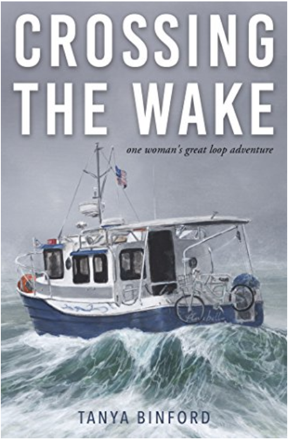
Here’s the book I read first about motoring the Great Loop. I keep looking at that photo and imagining all the salt water corrosion on that poor bicycle.
Crossing the Wake
I read Crossing the Wake: One Woman’s Great Loop Adventure by Tanya Binford, which I reviewed briefly in the first blog post of this series. The only thing I learned from the book was that a barely prepared middle-aged woman could do the trip “solo” in a 25-foot boat. (I put “solo” in quotes because apparently there are so many people doing this trip that it’s common to join up with one or more boats and do lengths of it together.) The book was more of a personal memoir than a useful travelogue because it lacked most of the details a cruiser would need to plan and execute this trip.
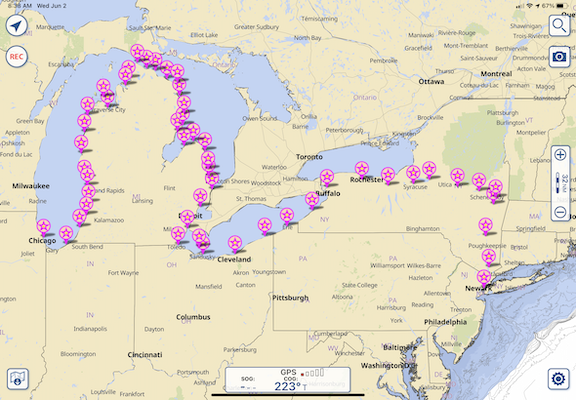
Needing — or maybe just wanting? — more detailed information about the trip from Jersey City, where Captain Paul, first mate Dianne, and the Motor Vessel Nano would pick me up, to Chicago, where I’d leave them, I started digging deeper
Waterway Guide
I learned about Waterway Guide at one of the “Lunch and Learn” sessions at AGLCA’s Rendezvous. Lunch and Learn sessions basically give an AGLCA sponsor time in front of members to sell their product. They are informative and can be helpful, especially if they’re selling something you’re interested in. Waterway Guide was definitely something that interested me. It’s an online service that provides a wealth of navigation, marina, anchorage, service center, and points of interest information for east coast waterways, including the entire length of the Great Loop. (They do have a database of west coast marinas and some other services, but it is not maintained anywhere to the level of the east coast information; they apparently focus on the east coast, leaving me to wonder if another organization fills the void out west.) Of course, membership is required to get access to all of the information they have online and, of course, I joined to get that information. (My AGLCA membership got me a discount, which was nice.)

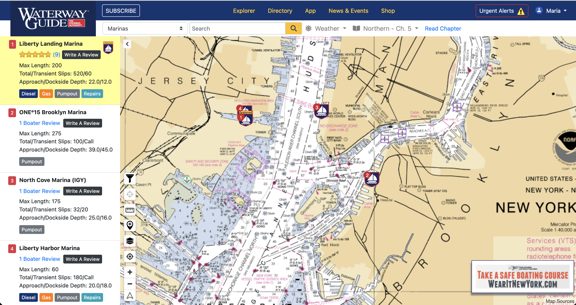
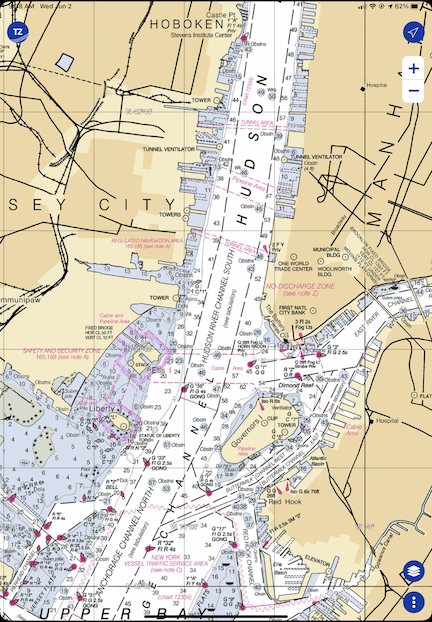
Waterway Guide’s website showing New York Harbor. I love the fact that it displays charts and plots various features on it. Zooming in provides more detail. If I turned on location tracking in my browser, it would put an icon near my position.
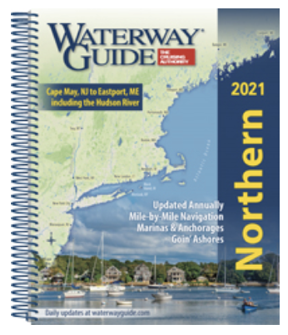
The membership level I chose also came with two of their printed guides. I chose Northern, which would take me up the Hudson River, and Great Lakes Volume 1, which would take me through the Erie Canal and into Lake Erie. These books, which are revised annually, include all of the information that’s on the website in a handy spiral bound format that’s easy to leave open and consult while traveling. (Sadly, they are not small so I won’t be bringing them with me on the trip; there’s limited space on the Nano. I hope Captain Paul will have his copies with him.)
I have a love-hate relationship with these books. First, I love the amount of detail that’s included. Reading through them makes me want to go ashore and explore every place they talk about. But what drives me nuts is the way the book is organized. Each section is broken down into segments that can be 5 to 25 miles in length. Within each segment are subsections:
- An overview or notes section discusses the segment of waterway in terms of geography, geology, and points of interest.
- Navigation tells you more about navigating each part of the segment, including which chart(s) to use. This has some more points of interest information.
- Dockage/Moorings tells you where you can find marinas or other places to tie up. This information is repeated in chart format for the section.
- Anchorage suggests places to drop anchor and provides useful information about each place such as how it is protected and whether there is noise.
Sounds great, right? Well, it is and isn’t. The information is great but the presentation isn’t presented logically. For example, in the “Tappan Zee Bridge to Bear Mountain — Mile 27 to Mile 46.7” segment of the Northern guide, the overview takes you through that roughly 20 miles of Hudson River with a separate heading at the end for the Bear Mountain Bridge. Then Dockage/Moorings takes you back from the beginning of that stretch to the end. Then Anchorage takes you back again from the beginning to the end. So there’s a lot of back and forth in a 20-mile stretch of river. What I found, especially in the segments covering the Erie Canal, is that I couldn’t keep track of where a marina or anchorage was without trying to follow along on the online guide, which included charts and icons for many of the things they were talking about.
I think the guide would be a lot easier to follow if the Dockage/Moorings and Anchorage sections were combined and that information was presented together. Or, better yet, combine all information with a much shorter overview. Just take me up the river and tell me what I’ll find along the way without forcing me to go back and forth on a map to see where points of interest, navigation details, marinas/moorings, and anchorages are when moving forward.
I guess what I’m trying to say is that the books could probably use a deep edit to remove repetition and better organize the data. Having more charts/maps and possibly fewer photos would be helpful. As for the photos, I can’t tell you how frustrating it is to see a photo of an interesting or beautiful place that has neither caption nor label to identify where it is.
(Please keep in mind that I spent 20+ years in publishing where I wrote and laid out dozens of books. One of the series I wrote for — Peachpit Press’s Visual QuickStart Guide series — made extensive use of “spreads” where everything you needed to see for a task was either on one page or two facing pages (a spread). I laid out these books, so I know it’s possible to present information in a format that doesn’t require a lot of paging back and forth. It drives me nuts when information could be presented more logically for the reader and isn’t.)
But overall, the books are worth the money — about $50 each — if you need printed detailed information for a trip.
But wait! There’s more! Waterway Guide also has an app, which I downloaded for my iPad.

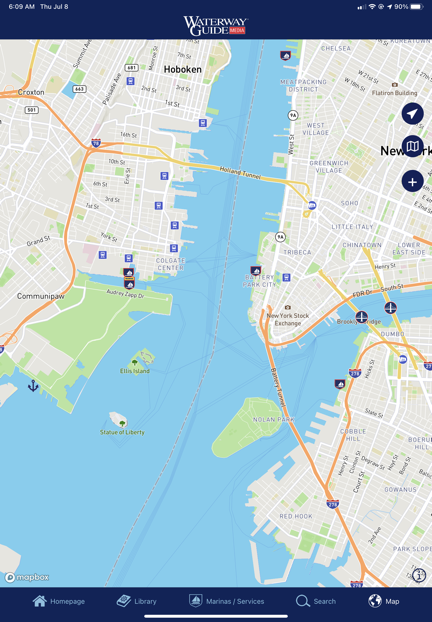
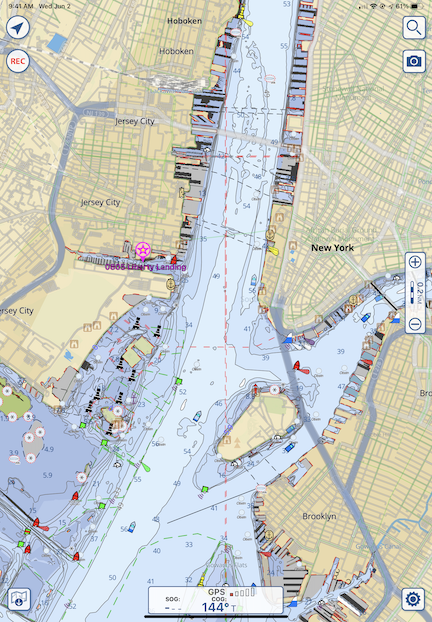
The Waterway Guide app doesn’t even use nautical charts as the base map layer.
So far, I’m not impressed. In order to get the kind of detailed information the printed guide has, you have to subscribe to each chapter — even if you’re a member, logged in, and have already obtained the printed version of the book containing that chapter. I subscribed to the New York Harbor & the East River chapter for $2.99/year to give it a try. The content is the same as what you’d find in the book, including the organizational shortcomings I mentioned above. It’s basically an ebook that you pay for each chapter you want to read using a subscription format that hits you up for another fee every year. (I can only assume the old information becomes inaccessible if you cancel the subscription.) And yes, it does include ads — although I admit I didn’t see many (yet). I’m bummed out because I was hoping it would be an offline version of the website and it falls far short of that. It doesn’t even have real charts. I’d much rather use the web browser in my iPad to access the website, where I have all the information without having to pay more subscription fees.
Skipper Bob’s Guide

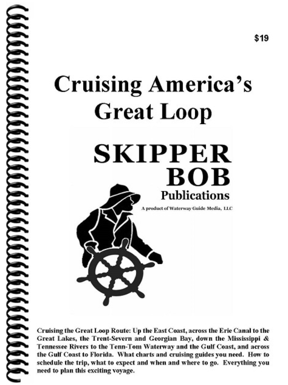
Skipper Bob’s guide, Cruising America’s Great Loop, is an excellent overview of the entire trip.
If you want the “Cliff’s Notes” version of Waterway Guide specifically for the Great Loop, try Cruising America’s Great Loop, a Skipper Bob publication. This $19 book provides 108 pages of information about cruising the Great Loop. It’s a good overview that tells you which charts to use, what you’ll see along the way, and things to watch out for.
My opinion: If you’re considering the Great Loop and want to learn more, start with this book. It really is a good overview to help you decide whether cruising the Great Loop is something you really want to do. It’s also a great visual aide when you’re trying to explain to friends and family members what the Great Loop is all about.
New York State Canal System Cruising Guide

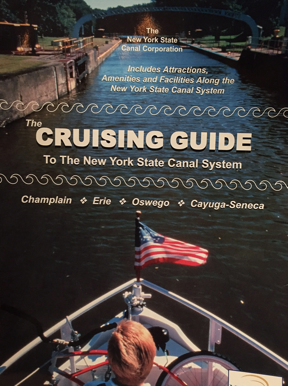
I got my copy of the Cruising Guide for free from the New York State Canal Corporation, but I’m not sure how.
I think it was the Skipper Bob book that recommended getting a copy of The Cruising Guide to The New York State Canal System from the New York State Canal Corporation. I tracked it down online where I found a printable (!) order form. I filled it in, sent a check for $29.95, and waited. About two weeks later, I got a thick envelope with a spiral bound book, a bunch of other informative pamphlets and maps, a letter, and my check. The letter informed me that they were no longer accepting payment for the guide; it was free. For the life of me, now I can’t find a link on their website to order the book, but there’s some good navigation info here. I did find the same book on a website that is charging $29.95 for it.
The book breaks down the canal from west to east — the opposite direction I’ll be traveling in August — with charts, photos, and descriptions on full-page sections along the way. (This is the format I wished Waterway Guides would use.) It’s got a LOT of information specific to the canal, inlcuding the amount of time between points and the expected time to lock through each specific lock. It’s easy to see why the book is now free: there are ads throughout. But the ads don’t distract from the content and are strategically placed near where they apply. For example, an ad for a marina will be on the same or facing page as the map where it can be found.
This is a great book that I would definitely bring with me if Captain Paul hadn’t already assured me that he also had a copy and it would be on board.
Quimby’s Guides
The one book I bought that I really regret buying is Quimby’s Cruising Guide. This well-known resource for eastern U.S. boaters is nothing more than a listing of commercial establishments and locks on various inland waterways. While it might have a lot of value for folks doing the entire Great Loop, it didn’t provide any coverage for the area I’d be cruising: the Hudson River, the Erie Canal, and three of the five Great Lakes. I don’t know what made me think it would provide coverage; it’s my own damn fault that I didn’t read the description thoroughly. At $42, it was a costly lesson.
I should mention here that although the information it provides is extremely limited and the book has quite a few ads, I do like the way the information is presented: in order of river mile. There’s no bouncing back and forth in the text to get the big picture. Instead, it’s just a list, by river mile, of the facilities and related contact information.
Summing Up
I think one of the things that has me so excited about my trip is that there’s so much that I can learn along the way. I’m familiar with just a tiny stretch of this trip — from Jersey City to just beyond West Point, where my family took our small motorboat on outings when I was a kid. The rest is new and full of challenges and history. How can that not be exciting?
Preparing for the trip by researching it as much as possible can help me make the most of the journey. I’ll keep reading right up to the day I head east.